How to appear on Google Maps: step-by-step guide
To appear on Google Maps you need a verified Google Business Profile. Steps, eligibility rules, and mistakes that delay your map listing.

Relvio Team
- Google Business
- Local SEO
- Google Maps

Appearing on Google Maps means Google can show your business on the map and in the local results panel when someone searches for what you offer nearby. There is no separate Maps signup: you almost always create or claim a Google Business Profile and finish verification.
To show up on Google Maps you need an eligible business, details that match a real location (or declared service area), and approved verification. Without that, you may have a website, but you will not compete for the local map pack or collect reviews normally.
What do you need before you create the listing?
Google requires businesses to meet eligibility guidelines: a real name, contact details answered by the business, and a presence in the area you list.
| Situation | Can you list? | What to declare |
|---|---|---|
| Customer-facing storefront | Yes | Verifiable street address |
| Home or mobile service (plumber, cleaning) | Yes | Service area; hide street if no walk-ins |
| Online-only store with no visits | No | Use web and ads, not local Maps |
| Brand with several branches | Yes, one profile per location | Each address verified separately |
Before you start, gather your trading name, main category, phone you answer, hours, photos, and website (if any). If a listing already exists and you do not control it, claim it instead of creating a duplicate.
How do you register your business on Google Maps step by step?
Follow this order; it matches Google's guide to add or claim your Business Profile:
- Sign in to Google Business Profile with the Google account that will manage the business (a dedicated account works better than mixing personal use).
- Enter your business name and check whether Google suggests an existing listing. If it is yours, choose Claim rather than creating another.
- State whether customers visit a storefront or you cover a service area.
- Add the address or service area carefully: it must match your signage, invoices, and what customers experience.
- Pick the most specific primary category (for example "Dental clinic" instead of only "Medical clinic").
- Add phone and website, confirm opening hours.
- Start the verification Google offers (postcard, call, SMS, email, or video depending on the business).
- After verification, finish description, photos, services, and attributes in the same dashboard.
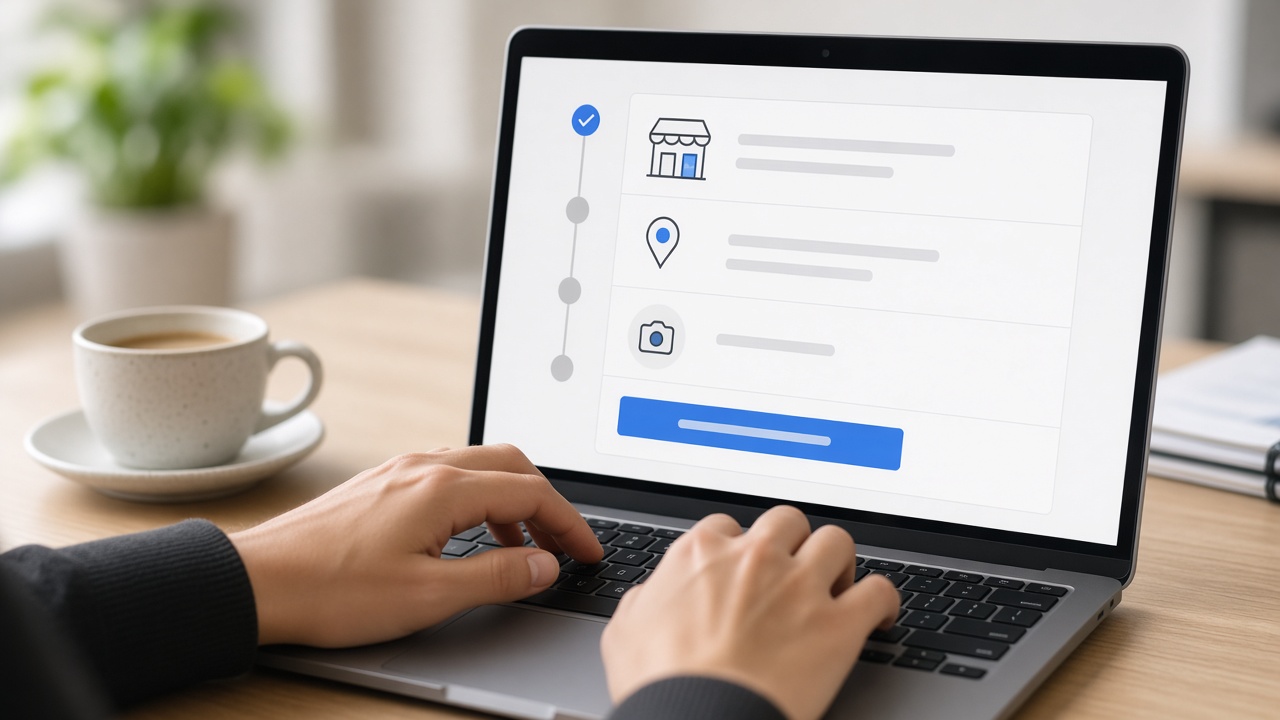
For several stores, repeat the flow per location. When review volume grows across branches, see managing Google reviews across multiple locations.
How does Google decide whether to show your listing on Maps?
Being on the map is not a permanent fixed slot. Google ranks local results using relevance, distance, and prominence. All three matter on every search.
- Relevance: how well your category, description, services, and text signals (including legitimate reviews) match the query.
- Distance: how close you are to the searcher or the point they searched; you cannot cheat this, but you must not fake an address.
- Prominence: how well known and trusted the business is on and off Google (links, mentions, reviews, profile activity).
BrightLocal's Local Consumer Review Survey (2026) reports that 97% of consumers read reviews for local businesses. That is why, once you are visible, reviews and replies matter as much as the initial setup.
What mistakes delay appearing or staying on Maps?
Avoid these patterns; Google may hide the listing or limit interactions:
- Keyword-stuffed names ("Cheap Madrid hair salon discounts center"). Use your real trading name.
- Two listings for one site. Merge or remove duplicates through support.
- Fake addresses or coworking with no real service there.
- Overly broad categories competing with hundreds of generic profiles.
- Verified but empty profiles: no photos, stale hours, no review responses.
If you buy reviews or hide unhappy customers, Google may remove ratings or suspend the profile. Read risks of buying Google reviews and review gating before you scale review requests.
Is appearing on Maps the same as optimizing the profile?
No. Appearing is the first milestone: existence plus verification. Optimizing is what keeps visibility when competitors fight for the same searches.
The optimize Google Business Profile guide goes deeper on categories, photos, posts, attributes, and Q&A. Think in two phases:
| Phase | Goal | Key action |
|---|---|---|
| Setup | Google recognizes you | Create or claim + verify |
| Growth | Build relevance and prominence | Steady reviews, photos, replies, fresh data |
BrightLocal's 2025 edition of the same survey notes that 89% of consumers are more likely to use a business that replies to all reviews. Public replies build trust before someone walks through the door.
Once the listing is live, use how to get more Google reviews to grow ratings within policy.
How do you apply this in your business this week?
- Claim or create the listing with the most specific category for your main service.
- Finish verification without changing the address or name until Google confirms.
- Upload at least cover, logo, and two interior or work photos.
- Publish seasonal hours (including holidays) and check the map pin on a phone.
- Ask three genuine reviews from recent customers and reply within 48 hours.
- Check the dashboard monthly: discovery searches, calls, and direction requests.
If you already receive weekly reviews and want AI drafts with manual publishing, Relvio, Spanish Google review management software with AI, keeps one dashboard without auto-posting, including the free Hobby plan up to 150 reviews.
Google also notes that complete, up-to-date business information improves the odds of showing for relevant local searches (Google Business Profile help). That does not replace reviews, but an incomplete profile wastes map traffic.
You might also like: how Google reviews affect local SEO and Google review request templates.
Frequently asked questions
Manage your Google reviews with Relvio
Respond to every review in seconds with AI, monitor all your locations, and improve your online reputation from a single dashboard.
Start for freeNo credit card required. Ready in 5 minutes.